
Scatter
A scatter covers a surface with copies of your components: grass on a lawn, trees on a hill, pebbles on a path. The copies only exist in the render, so your SketchUp model stays light and fast, even with a million of them.
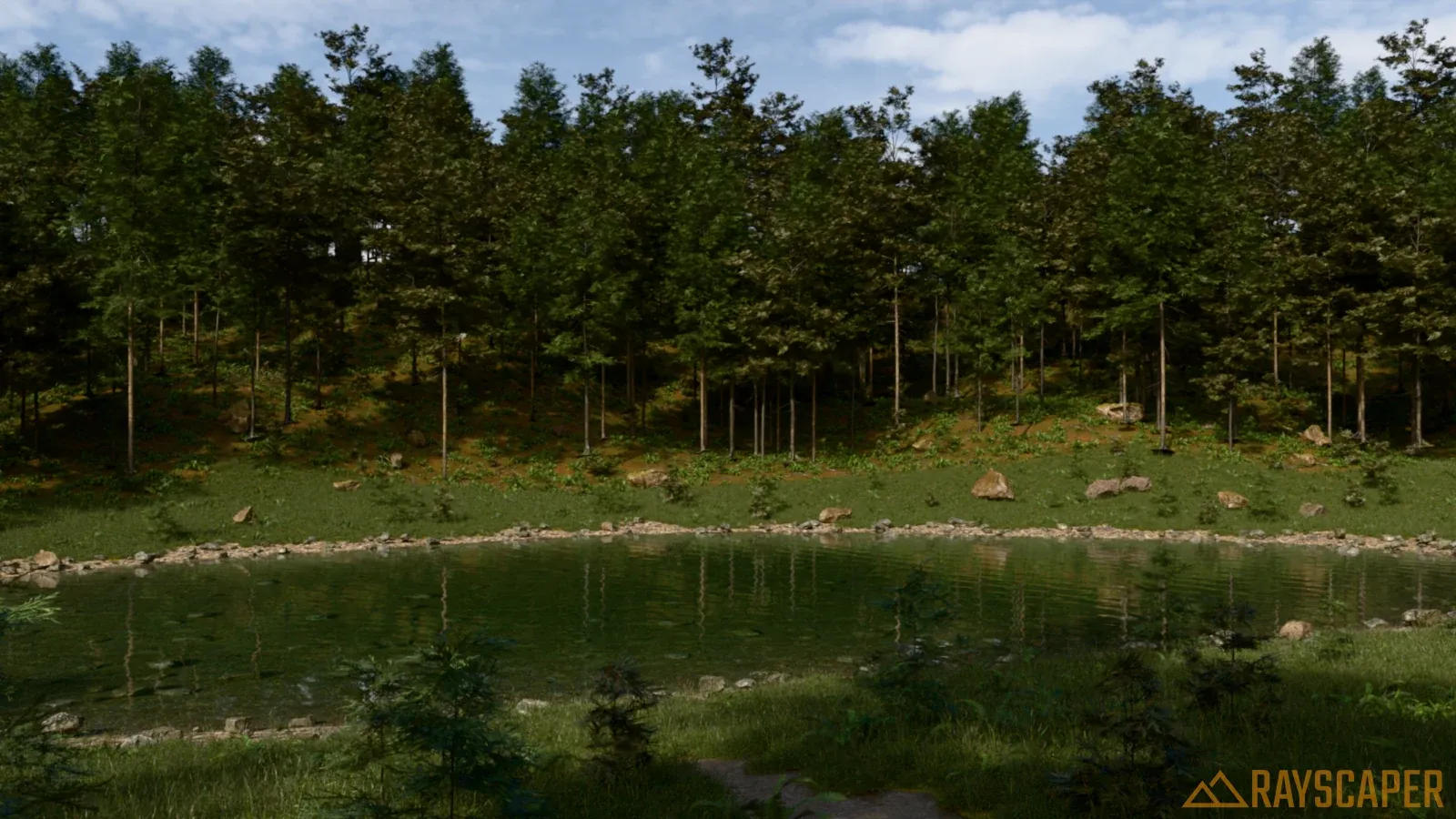
Everything in this forest that isn’t the ground or the water is a scatter: more than 230,000 trees, saplings, ferns, grass clumps, rocks and stones, from a SketchUp model with one copy of each. See Example: a forest pond for how it’s made.
A scatter is made of two things you pick in SketchUp:
- Surfaces: the groups or components the copies are placed on.
- Objects: the components that get copied.
Everything else, like how many copies and how much they vary, is set in the Scatter section of the Scene Editor.
Fill a garden with plants scatters four plants over the planting beds of a villa garden: the garden as the surface, the plants as objects, only the faces painted with the bed material, the density, and a new bed painted in SketchUp that the plants follow. To follow along, download its scene, rayscaper-scatter.skp (8.7 MB): a modern villa whose lawn and shrub border are scatters already, with one plant of each kind in a bed. It works with the free version of Rayscaper.
Create a scatter
Section titled “Create a scatter”Rayscaper has to be rendering, because the render window does the scattering.
-
In SketchUp, select the group or component to scatter on, for example your terrain.
-
Right-click it and pick Rayscaper > Scatter on Selection. The render window opens the Scatter section with a new scatter.
-
Select the components to scatter, for example a grass clump and a flower.
-
Right-click them and pick Rayscaper > Add to Scatter as Object. The copies show up in the render.
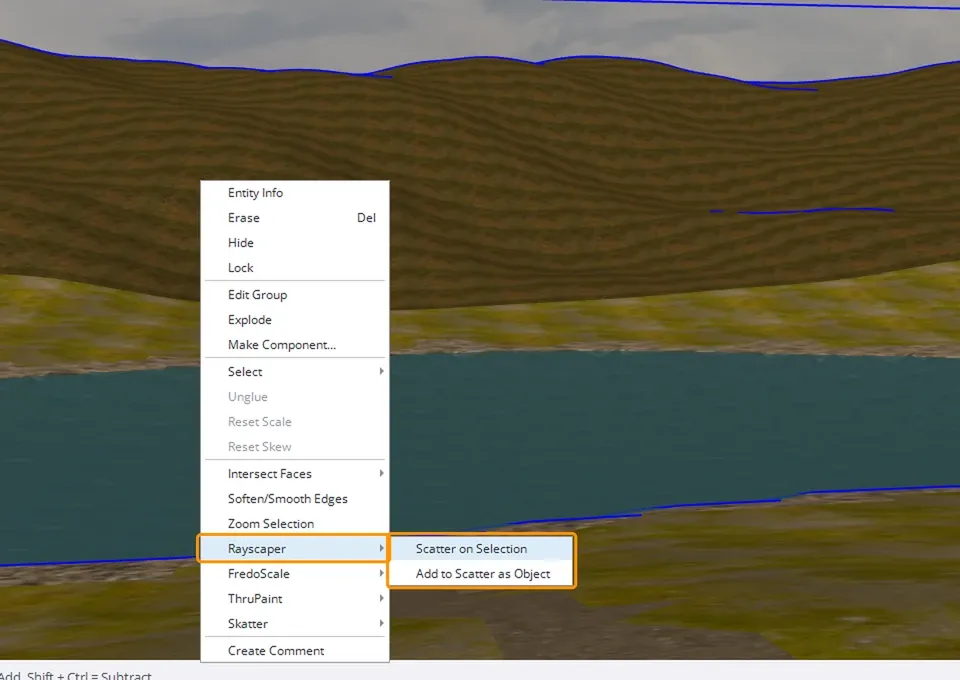
You can do the same from the render window: select in SketchUp, then press Scatter on SketchUp Selection or one of the Add SketchUp Selection buttons in the Scatter section.
Surfaces
Section titled “Surfaces”| Setting | Description |
|---|---|
| Materials | Limits the scatter to the faces with the checked materials. With All materials the whole surface is used. |
| Add SketchUp Selection | Adds the groups and components selected in SketchUp as surfaces. |
| Add Loose Geometry | Scatters on the faces of the model that aren’t part of a group or component. |
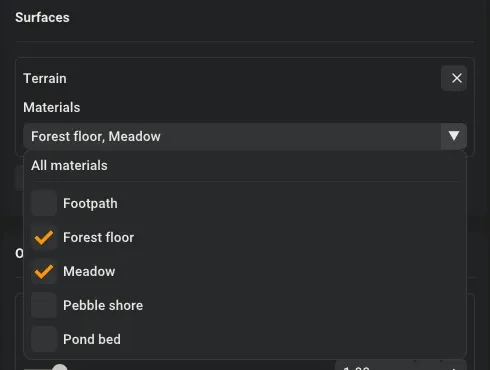
The material is the easiest way to decide where a scatter goes. Paint the lawn with a grass material and the path with gravel, check the grass material in the Materials list of the surface, and the path stays clear. Check more materials to scatter on more of the surface, like a forest that covers the forest floor and the meadow. Repaint a face with the paint bucket in SketchUp and the scatter follows.
A surface has to be a group or component that isn’t nested inside another one.
Objects
Section titled “Objects”Every object has a Weight: how often it’s picked compared to the others. An object with weight 2 shows up twice as often as one with weight 1. At weight 0 the object stays in the list but isn’t scattered.
Faces of an object that aren’t painted take the material of the component you selected, the same way SketchUp shows them.
Distribution
Section titled “Distribution”| Setting | Description |
|---|---|
| Projection, Wrap | Projection places the copies on the surface from above. Wrap covers every face of the surface. See Projection or Wrap. |
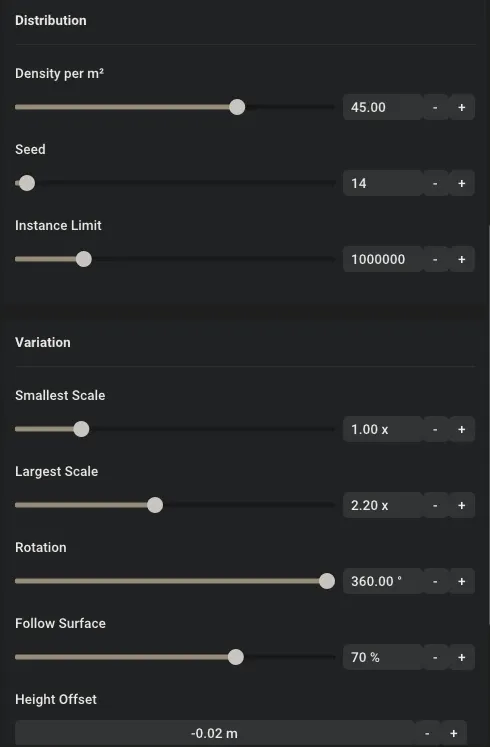
| Density per m² | Number of copies per square meter of surface. |
| Seed | Every seed gives another random arrangement. |
| Instance Limit | Upper limit for the number of copies. The density is lowered when the surface would get more. |
Projection or Wrap
Section titled “Projection or Wrap”Projection is made for lawns and terrains. The copies come down on the surface from above, like rain, so only the parts you see from above get copies: the underside of a ball, the ground below an overhang and upright walls stay empty. The copies stand on the upper side of the surface, whichever way its faces are turned in SketchUp.
Wrap is made for shapes you want to cover all around, like a topiary ball or a mossy boulder, and for walls. Every face of the surface gets copies, on its front. When copies end up inside a shape or behind a wall, the face is turned the wrong way: right-click it in SketchUp and pick Reverse Faces. Set Follow Surface to 100% to make the copies point away from the faces. At 0% they stand upright on every face, also on the underside of a shape.
Variation
Section titled “Variation”| Setting | Description |
|---|---|
| Smallest Scale, Largest Scale | Every copy gets a random size between these. |
| Rotation | Copies are turned around their up axis by a random angle up to this. 360° gives every direction. |
| Follow Surface | At 0% the copies stand upright, like trees on a slope. At 100% they stand perpendicular to the surface, like grass. |
| Swap Y and Z | The green axis of the objects follows the surface instead of their blue axis, and their blue axis stays upright. See Green walls. |
| Height Offset | Moves the copies up or down. Sink them a little to hide their base in uneven ground. |
Green walls
Section titled “Green walls”To cover a wall with plants, use Wrap, since Projection leaves walls empty, and set Follow Surface to 100%. The copies then stick out of the front of the wall, which suits moss, leaf clusters and ferns. Height Offset moves them out of the wall or sinks them into it. A wall with thickness gets copies on all its sides, so paint the side you want and check only that material under Surfaces.
Plants that hang down or climb, like ivy, are modelled upright and have to lie flat against the wall. Check Swap Y and Z for those: the copies stay upright on every wall, with their green axis pointing out of it. Rotation then makes them lean to the left and the right by up to half its angle, so keep it small.
Preview in SketchUp
Section titled “Preview in SketchUp”While Rayscaper is rendering, the SketchUp viewport shows where the copies are. Small scatters are drawn as boxes with the size of each copy, large ones as points. Every object has its own color, the one shown next to it in the Scatter section. For very large scatters the viewport shows a part of the points, the render always has all of them.
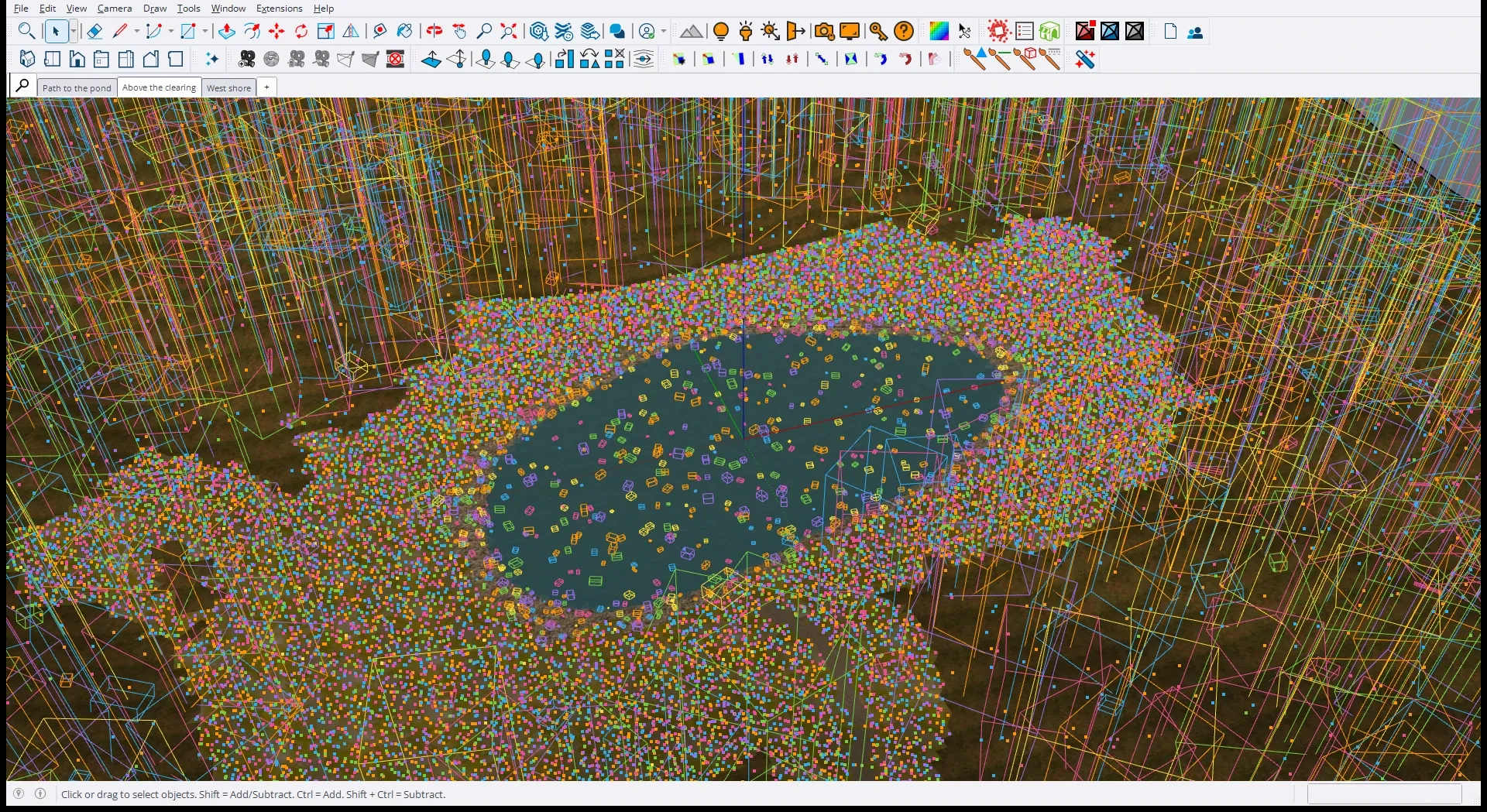
Turn the preview off in SketchUp’s Overlays panel, where it’s listed as Rayscaper Scatter Preview.
Example: a forest pond
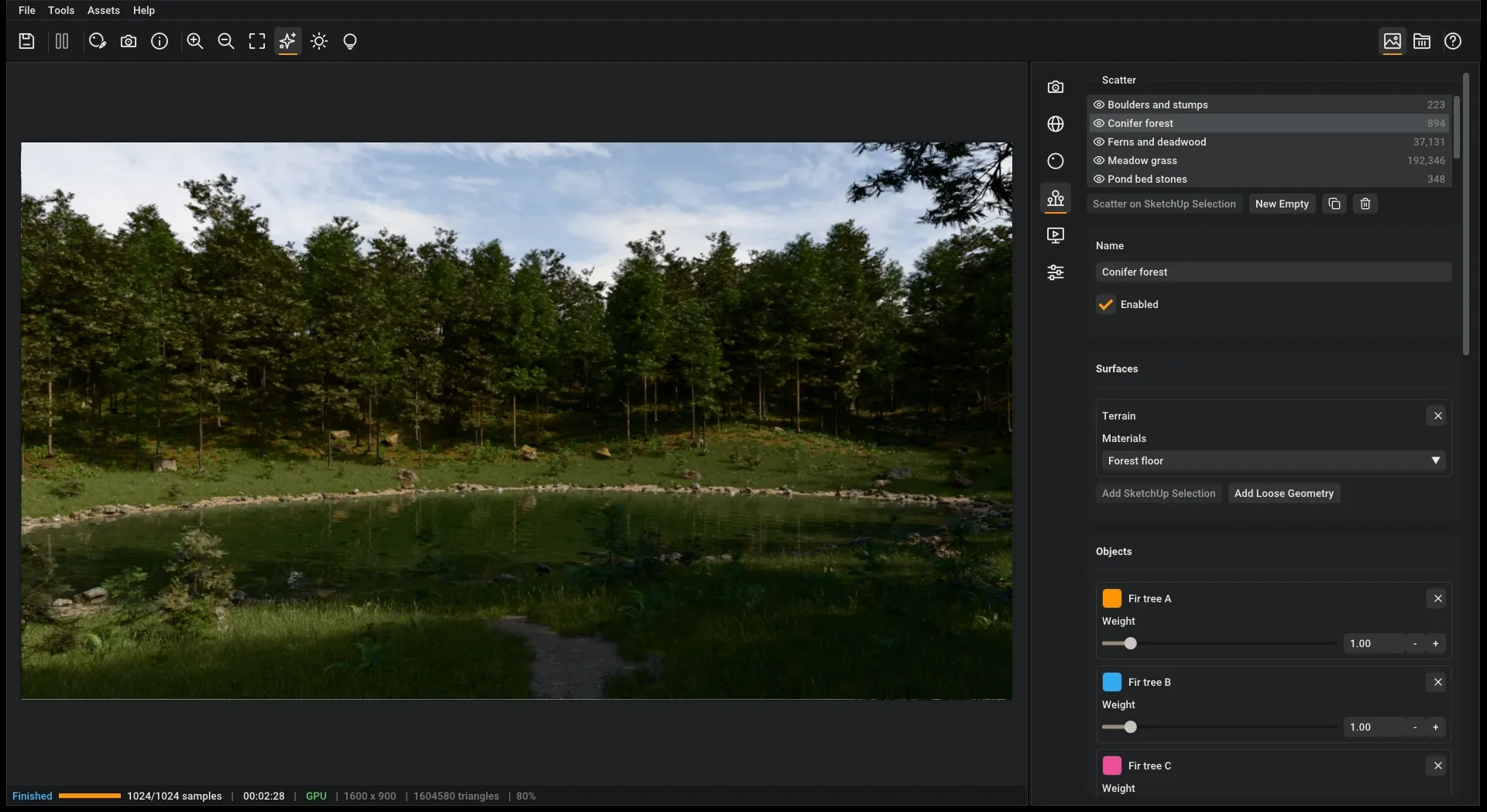
Section titled “Example: a forest pond”The forest pond at the top of this page is one SketchUp model. The terrain is a single group, painted with five materials: forest floor, meadow, pebble shore, pond bed and a footpath. The pond is one flat face with the Water material that the banks of the terrain cut to shape. Next to the terrain stands one copy of each component, on a tag that’s hidden for the render.
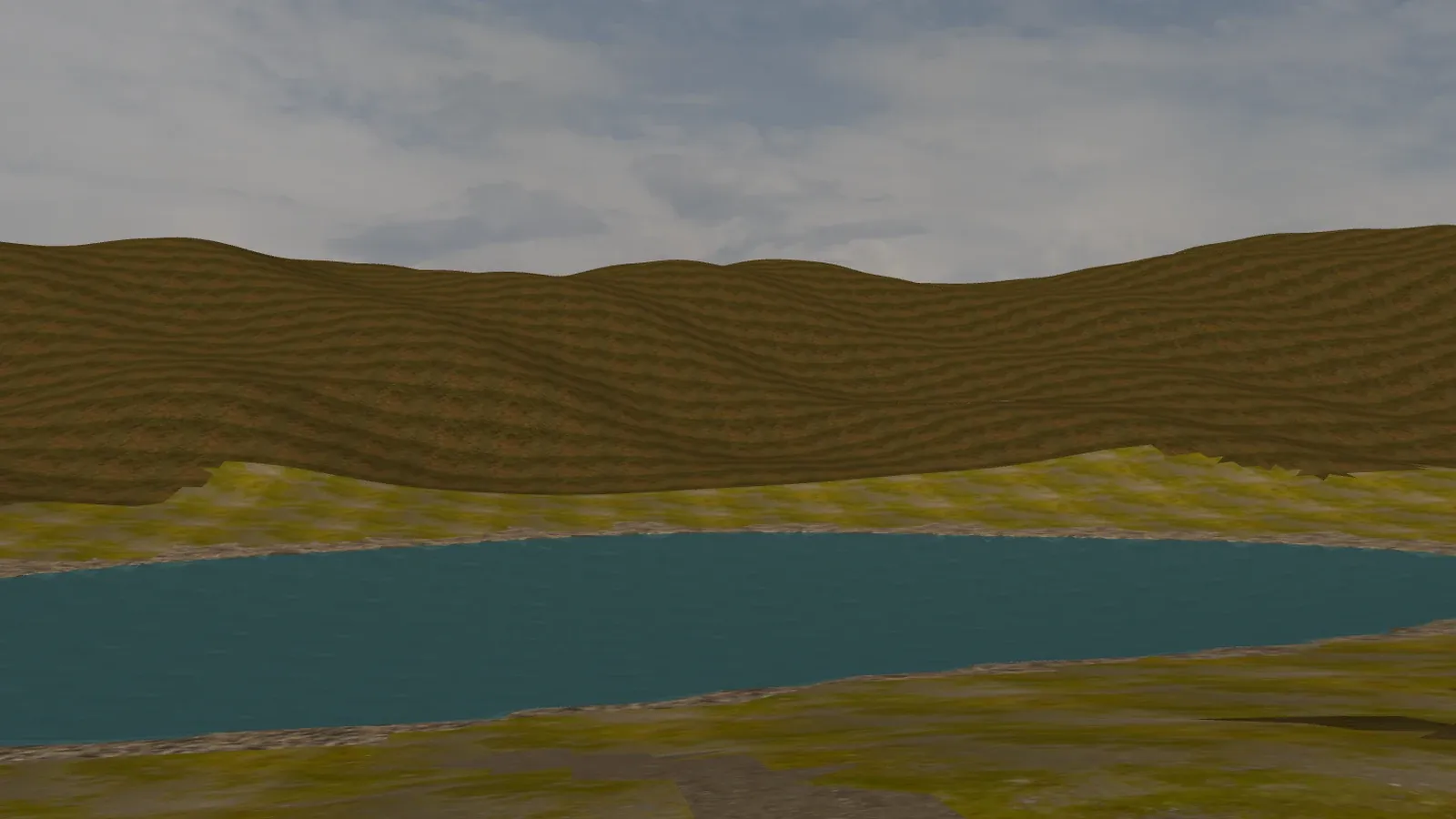
Seven scatters, all with the terrain as their surface, fill it in. The material of each surface decides where the copies go:
| Scatter | Materials | Objects | Density per m² | Follow Surface |
|---|---|---|---|---|
| Conifer forest | Forest floor | 3 pines, 3 firs | 0.03 | 0% |
| Saplings | Forest floor, Meadow | 4 young pines and firs | 0.035 | 10% |
| Ferns and deadwood | Forest floor | 3 ferns, 2 dry branches | 1.3 | 80% |
| Meadow grass | Meadow | 5 grass clumps, a fern | 45 | 70% |
| Boulders and stumps | Forest floor, Meadow | 6 mossy rocks, a boulder, a stump, a fallen trunk | 0.006 | 90% |
| Shore pebbles | Pebble shore | 13 rocks and stones | 1.2 | 100% |
| Pond bed stones | Pond bed | 7 stones | 0.25 | 100% |
The trees stand upright on the slope, the rocks and stones follow it. Nothing is scattered on the footpath, so it stays clear without any extra work, and the copies on the bed of the pond show through the water.
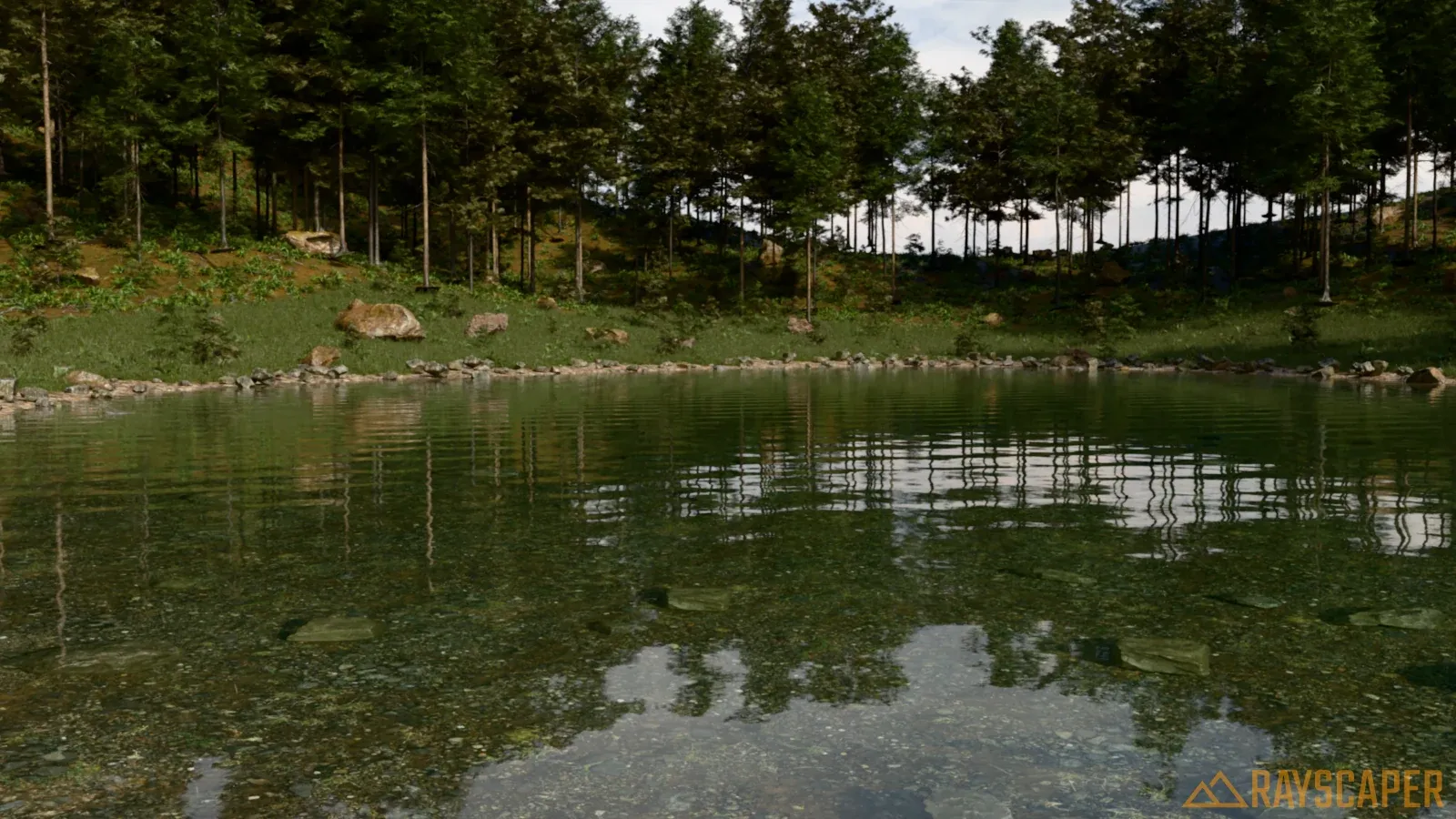
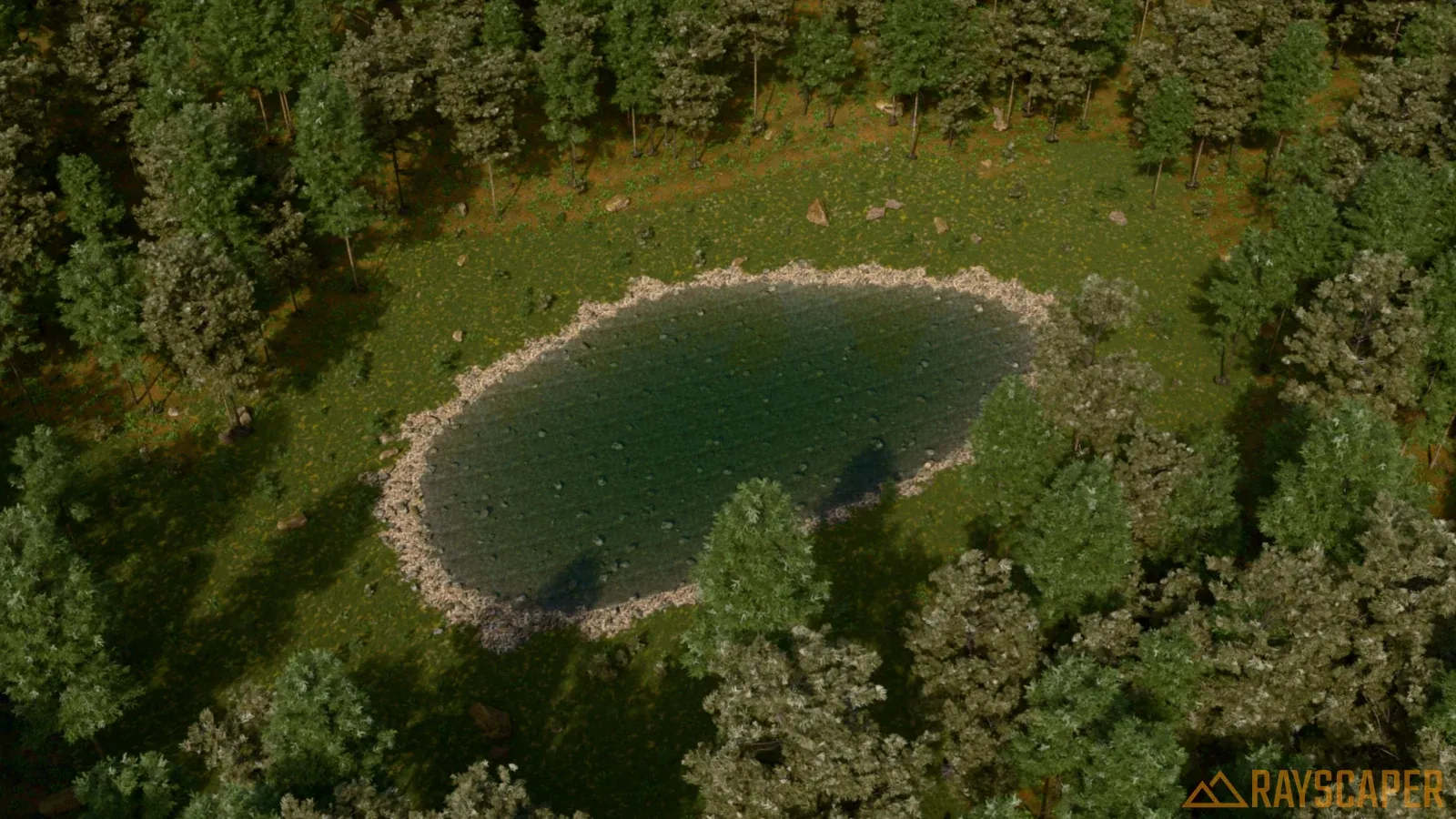
The trees, saplings, ferns, grass, rocks, stumps and branches, the ground textures and the sky are CC0 assets from Poly Haven. The trees are reduced to about 60,000 to 130,000 triangles each to keep the SketchUp model light.
Good to know
Section titled “Good to know”- Scatters are saved with your SketchUp model, together with the other Rayscaper settings.
- When you move or edit the surface, or edit a scattered component, the scatter updates.
- The copies can’t be selected or edited one by one, and they aren’t part of the SketchUp model.
- The pick tools of the render window (focus, material) see through the copies to what’s behind them.