
Report a Bug
Found a bug? A report with the log files and the steps to reproduce it lets us fix it quickly.
Where to Report
Section titled “Where to Report”- Email: send your report to help@rayscaper.com.
- Forum: post in the Extensions & Applications Discussions forum on SketchUcation.
How to Report a Bug
Section titled “How to Report a Bug”1. Export the log files
Section titled “1. Export the log files”The log files are the most important part of a report. Rayscaper collects them in a zip file for you: choose Extensions > Rayscaper > Export Logs for Support in the SketchUp menu.
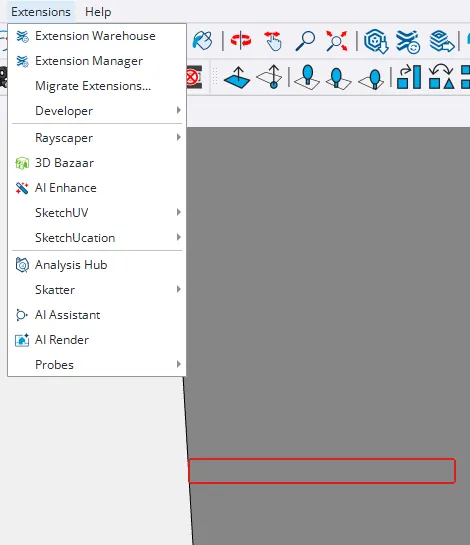
Attach the zip file to your report.
If the Rayscaper menu isn’t there, because the extension failed to load, collect the logs by hand: open
%APPDATA%\Rayscaper in Windows Explorer, select the files that start with SUEX_, and compress them into a zip
file.
2. Describe the problem
Section titled “2. Describe the problem”In your email or forum post, include:
- What you were trying to do when the bug occurred.
- What happened: the error message, or what went wrong.
- What you expected to happen instead.
3. Help us reproduce the issue
Section titled “3. Help us reproduce the issue”The easier it is for us to reproduce the bug, the faster we can fix it. If you can, include:
- Step-by-step instructions: the exact steps that trigger the bug, such as “1. Open the material editor, 2. Pick the Glass type, 3. Set Roughness to 0.5”.
- A screenshot or screen recording of what you see.
- A SketchUp scene: a small
.skpfile that shows the problem. Extensions > Rayscaper > Create Archive packs the model with its textures and HDRIs, see Create Archive.
4. Send your report
Section titled “4. Send your report”Attach the log zip file from step 1, with your screenshots or .skp file, to your email or forum post.
What Happens Next?
Section titled “What Happens Next?”We read every bug report and usually respond within a few business days. If we need more information, we’ll ask.