
Installation Guide
Installing Rayscaper for the first time
Section titled “Installing Rayscaper for the first time”Rayscaper is a SketchUp extension, distributed as an rbz file. Install it with SketchUp’s Extension Manager, or let the SketchUcation Tools extension download and install it for you.
Installing with the SketchUp Extension Manager
Section titled “Installing with the SketchUp Extension Manager”Step 1: Download the Rayscaper rbz file from the SketchUcation plugin store. You can also enter your email address on the Rayscaper homepage and we’ll send you a download link.
Step 2: In SketchUp, open the Extension Manager via Extensions > Extension Manager and click
Install Extension. Select the rbz file and confirm.
Step 3: The Rayscaper toolbar appears:

If it doesn’t, see I lost my toolbar.
Installing with the SketchUcation Tools extension
Section titled “Installing with the SketchUcation Tools extension”Step 1: Install the SketchUcation Tools extension, see these instructions.
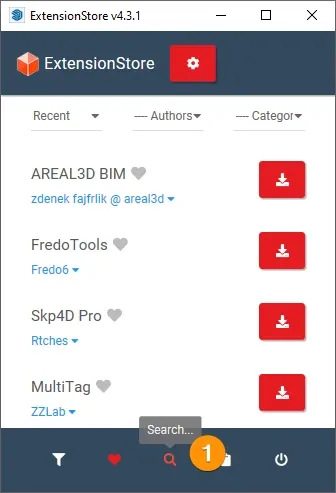
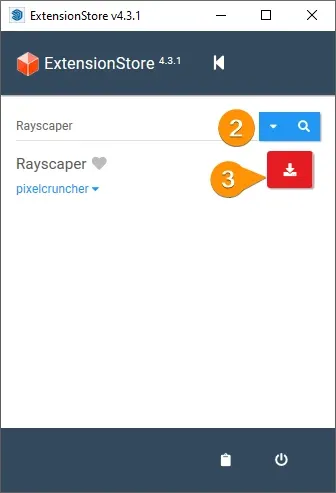
Step 2: Open the extension store via Extensions > SketchUcation > ExtensionStore, search for Rayscaper and click
the install button.
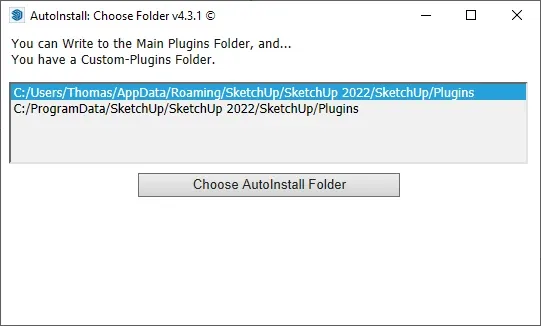
Step 3: Choose where to install the extension. The download starts once you confirm, and takes a few seconds, depending on your connection.
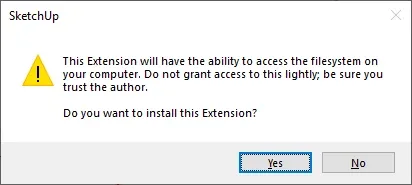
Step 4: When the download is finished, confirm the permissions of the extension. The Rayscaper toolbar appears.
Upgrading to a newer version
Section titled “Upgrading to a newer version”There is no update button: you install the new version over the old one.
Step 1: Download the new Rayscaper rbz file from the SketchUcation plugin store.
Step 2: In SketchUp, open the Extension Manager via Extensions > Extension Manager and click
Install Extension. Select the new rbz file and confirm. This is the same as a fresh install: you don’t need to
uninstall the old version first.
Step 3: Restart SketchUp. The running session keeps using the old version’s engine files until SketchUp closes, so the new version only works correctly after a restart.
When the new version starts for the first time, it removes the files of the previous versions automatically. Your settings, saved materials and downloaded assets are kept.
To confirm the upgrade worked, check the version number as described in What version of Rayscaper am I running?.
Uninstalling Rayscaper
Section titled “Uninstalling Rayscaper”Step 1: In SketchUp, open the Extension Manager via Extensions > Extension Manager.
Step 2: Open the Manage tab, find Rayscaper in the list and click Uninstall. Confirm when SketchUp asks.
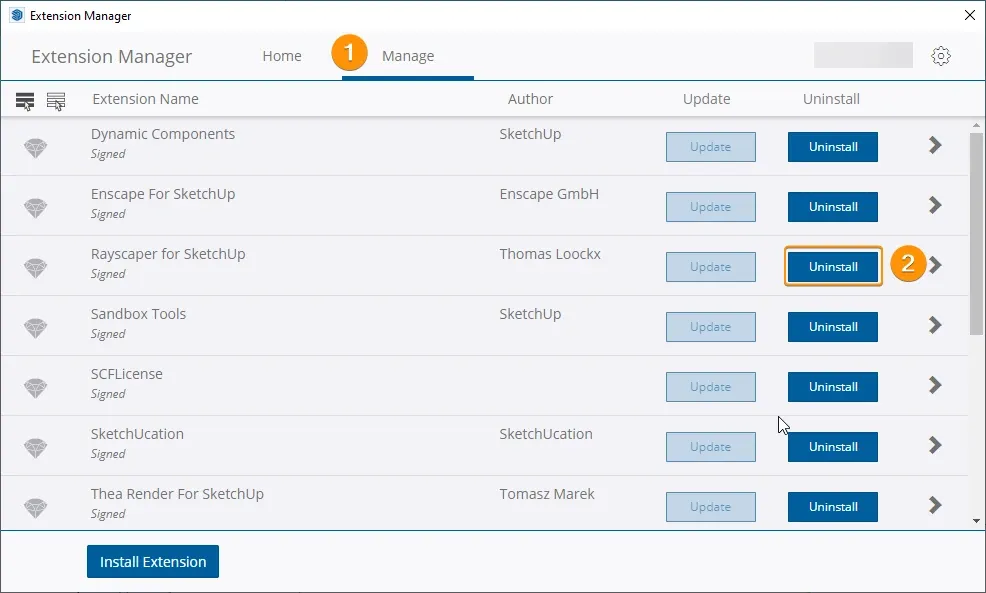
Step 3: Restart SketchUp.
Removing the remaining files
Section titled “Removing the remaining files”Uninstalling removes the extension itself, but Rayscaper keeps your settings, logs, saved materials and downloaded
assets in a separate folder, so they survive an upgrade or reinstall. To remove them as well, close SketchUp and
delete %APPDATA%\Rayscaper (usually C:\Users\<you>\AppData\Roaming\Rayscaper).
If a rayscaper folder or rayscaper.rb file is still in the SketchUp plugins folder after the restart, you can
delete them too. The plugins folder is %APPDATA%\SketchUp\SketchUp <version>\SketchUp\Plugins, for example
SketchUp 2026.
Your license is managed by the SketchUcation Tools extension, so uninstalling Rayscaper doesn’t affect it.