
Rendering FAQ
Do I need a GPU to use Rayscaper?
Section titled “Do I need a GPU to use Rayscaper?”No. Rayscaper renders on your NVIDIA GPU when it finds a suitable one, and on the CPU otherwise. A GPU makes rendering faster, but every feature works on the CPU too.
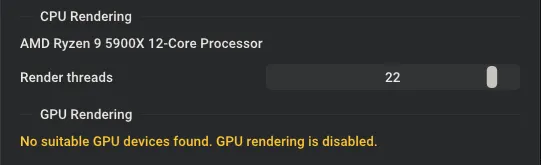
When no suitable GPU is found, the GPU Rendering section of the settings shows a notification.
What GPU do I need for GPU rendering?
Section titled “What GPU do I need for GPU rendering?”GPU rendering requires an NVIDIA GPU. See the GPU requirements.
Rayscaper renders on a suitable GPU automatically. To turn GPU rendering off or on, open File › Settings… (Ctrl+,), use Use GPU Rendering under GPU Rendering and click Save changes.
Why isn’t my GPU listed in the settings?
Section titled “Why isn’t my GPU listed in the settings?”Rayscaper only lists NVIDIA GPUs that it can render on. If your GPU is missing or the settings say no suitable GPU was found:
- Check that your GPU meets the GPU requirements.
- Update to the latest NVIDIA driver and restart SketchUp.
How can I improve responsiveness while rendering?
Section titled “How can I improve responsiveness while rendering?”CPU rendering uses significant system resources, which can make SketchUp and other applications feel sluggish. Try these solutions:
Reduce render threads: Open File › Settings… (Ctrl+,) and lower Render threads under CPU Rendering. This reduces CPU load at the cost of slower render times.
Use GPU rendering: If you have a compatible NVIDIA GPU, check that Use GPU Rendering is ticked under GPU Rendering in the same dialog. Rendering on the GPU frees up your CPU. A dedicated GPU works best.
How do I save a render?
Section titled “How do I save a render?”Choose File › Save…, press Ctrl+S or click the save button in the toolbar. Pick the file type in the save dialog:
- PNG saves the image as you see it, with tone mapping and post-processing applied.
- EXR saves the high dynamic range render, for further editing in other software. EXR export needs a license.
Where do I set the render resolution?
Section titled “Where do I set the render resolution?”In the Resolution settings of the Camera section of the Scene Editor. See Cameras.
In SketchUp, unlicensed renders and saved images are limited to 1280 pixels on the longest edge. The camera keeps your requested resolution and uses it automatically after you activate a license.
Why do my renders have a watermark?
Section titled “Why do my renders have a watermark?”Renders made without a license include a watermark. See Is there a free version? and How can I get a Rayscaper license?
Why do some faces appear cyan?
Section titled “Why do some faces appear cyan?”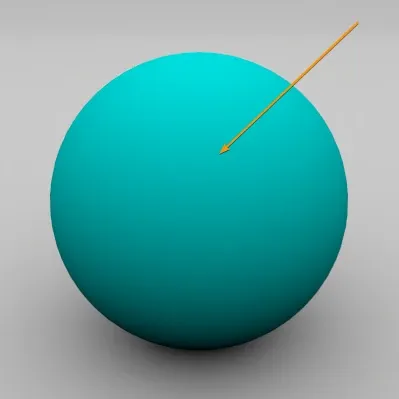
Cyan means that a texture is missing: the material uses an image that Rayscaper can’t find or load, for example because the file was moved, renamed or deleted, or sits on a drive that isn’t connected.
To fix it, select the material in the Materials section of the Scene Editor and open the texture that uses the image. Click New to pick the file at its current location, or Reload once the file is back in place. For a texture that comes from SketchUp, click Reload at the top of the material editor to fetch it from the SketchUp material again.
Faces without any material aren’t cyan: they render in a matte clay color, see Material Requirements.