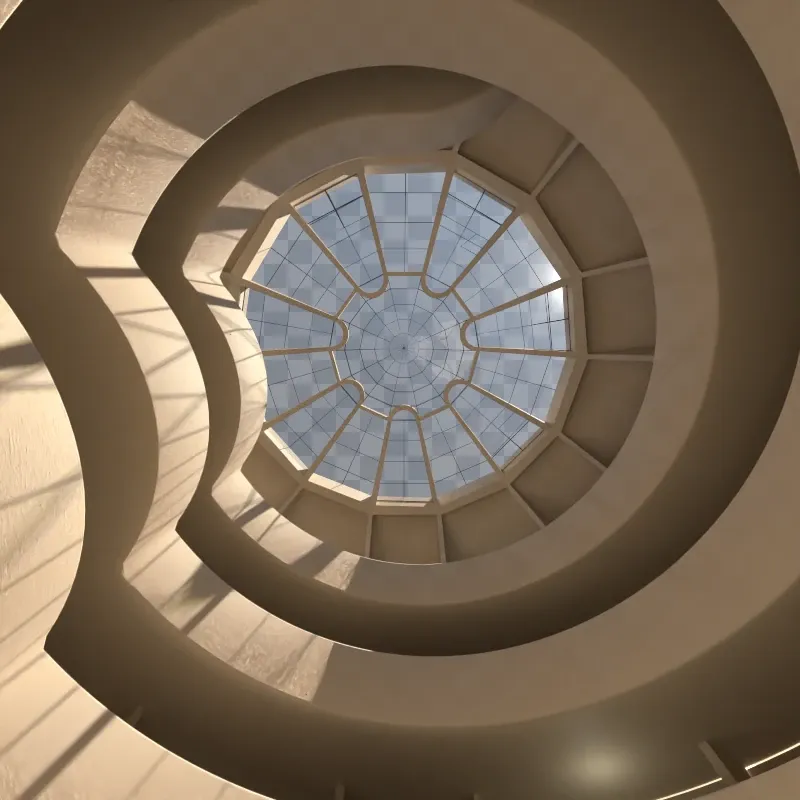
Post Processing
Rayscaper renders images in high dynamic range (HDR). Post-processing converts HDR to viewable images and adds visual effects. These settings are in the Post Processing tab.
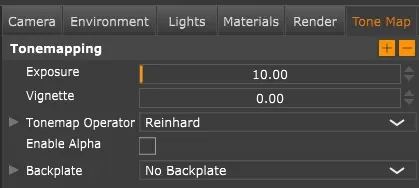
Post processing settings.
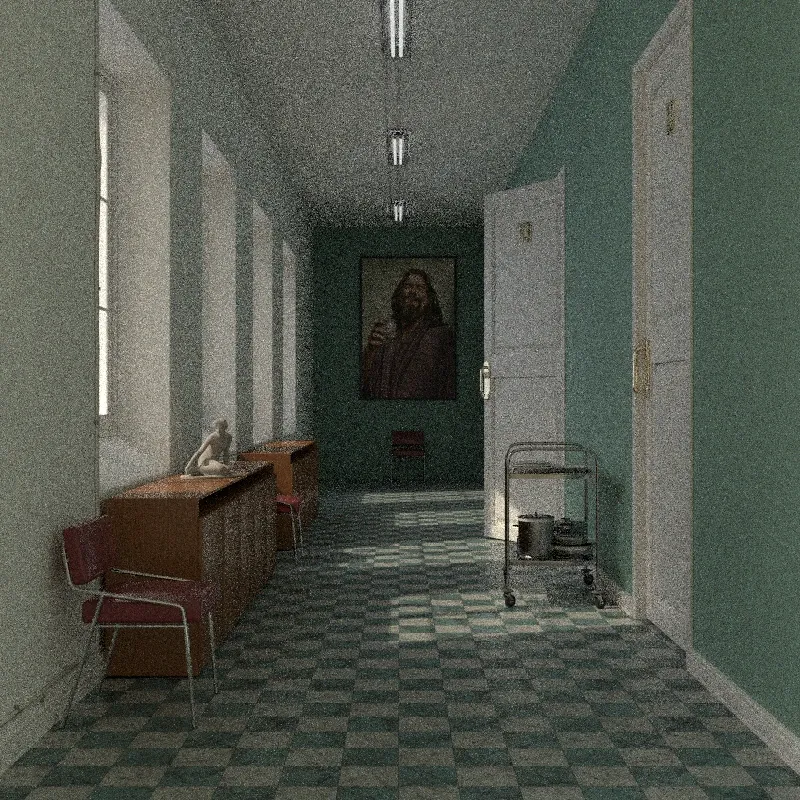
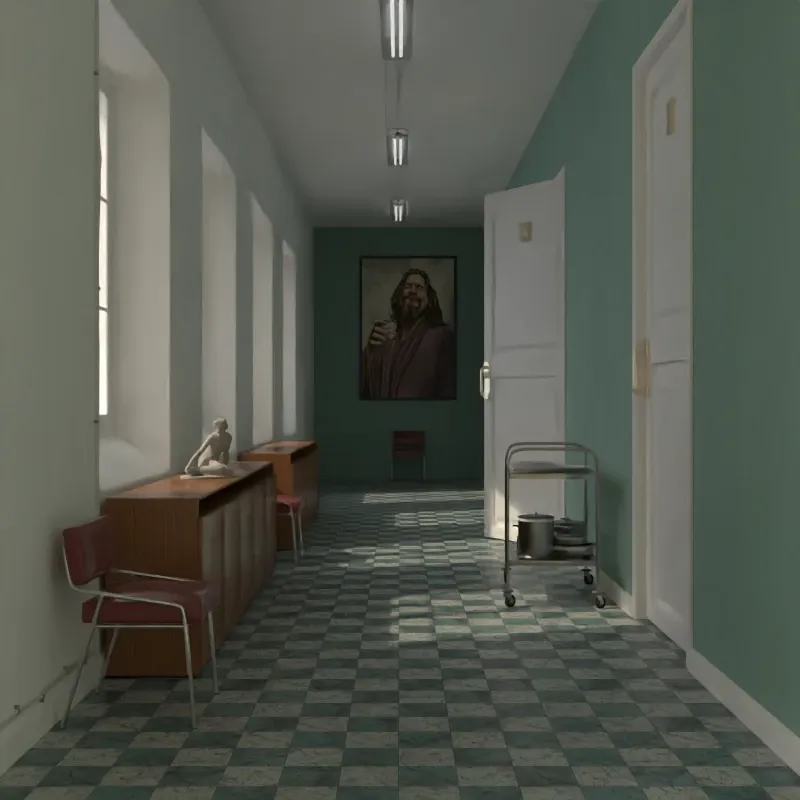
AI Denoise
Section titled “AI Denoise”Removes noise from renders using Intel Open Image Denoise, allowing you to use fewer samples and reduce render time.
Enable AI Denoise: Turns denoising on or off.
Bloom & Glare
Section titled “Bloom & Glare”Adds glow effects around bright areas in your image.
Enable: Turns bloom and glare on or off.
Cutoff: Brightness threshold (0.1-10). Only pixels brighter than this value contribute to the effect.
Bloom Power: Intensity and radius of the soft glow halo around bright areas.
Glare Power: Intensity and length of star-shaped glare rays.
When glare is enabled:
Glare Ray Count: Number of glare spikes (2-12).
Glare Angle: Rotation of the glare rays in degrees.
Glare Blur: Sharpness of glare rays. 0 = crisp, 1 = soft.
Tone Mapping
Section titled “Tone Mapping”Converts HDR to displayable images.
Exposure: Controls overall image brightness. Higher values brighten the image, lower values darken it.
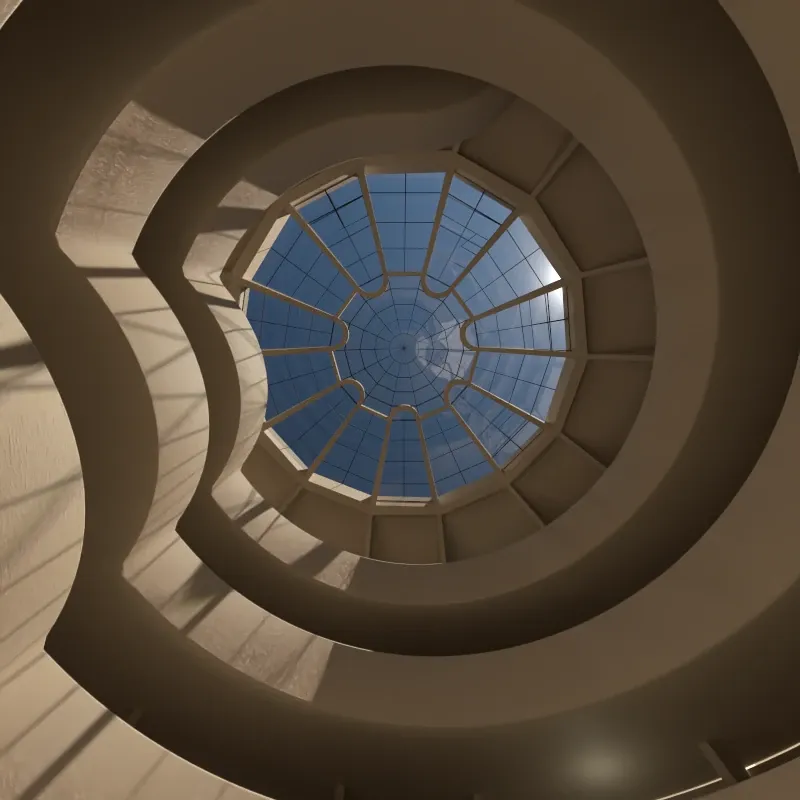
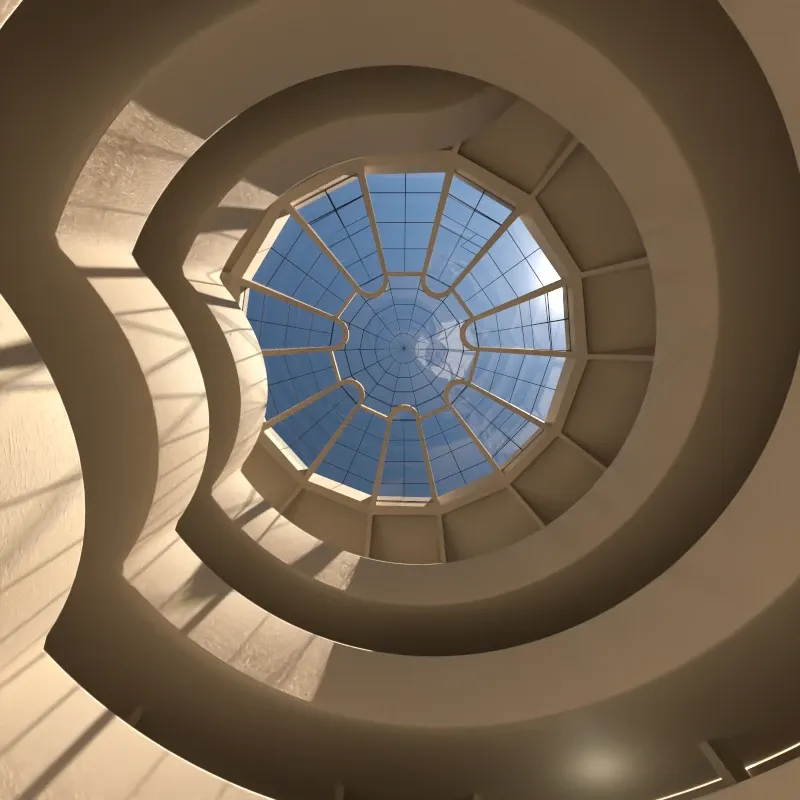
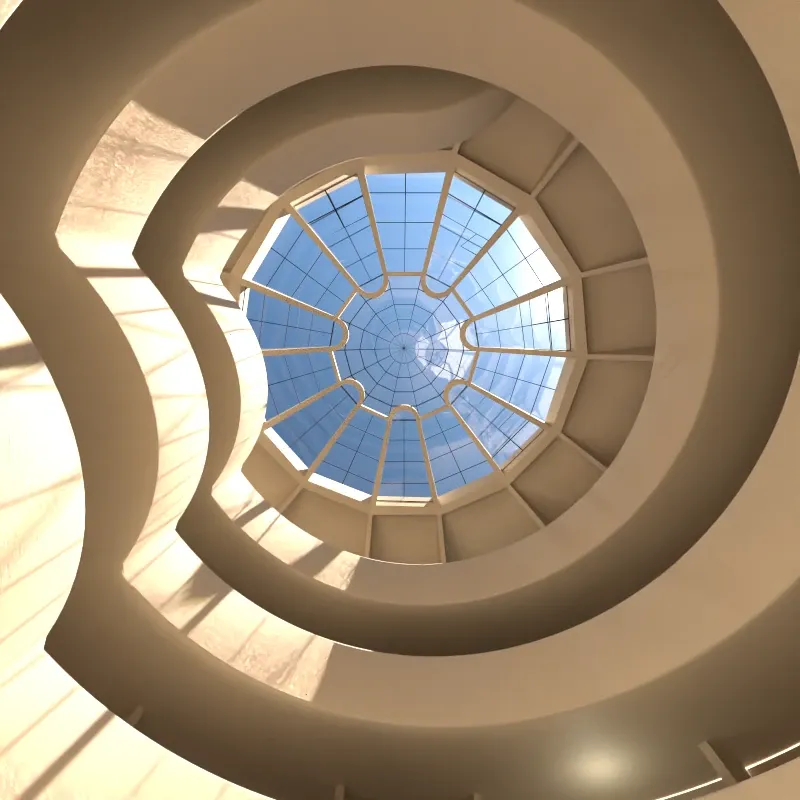
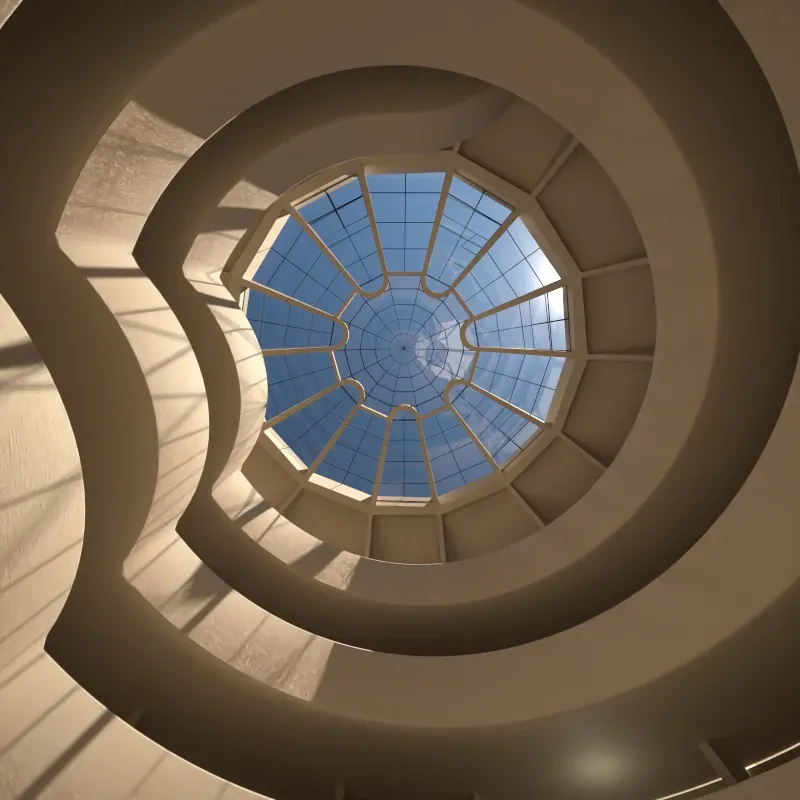
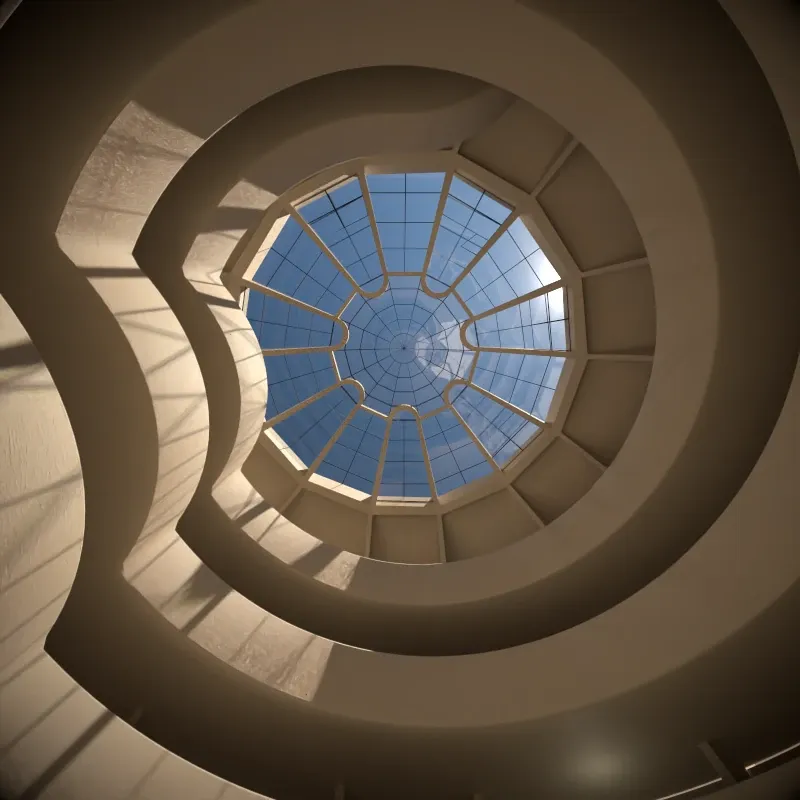
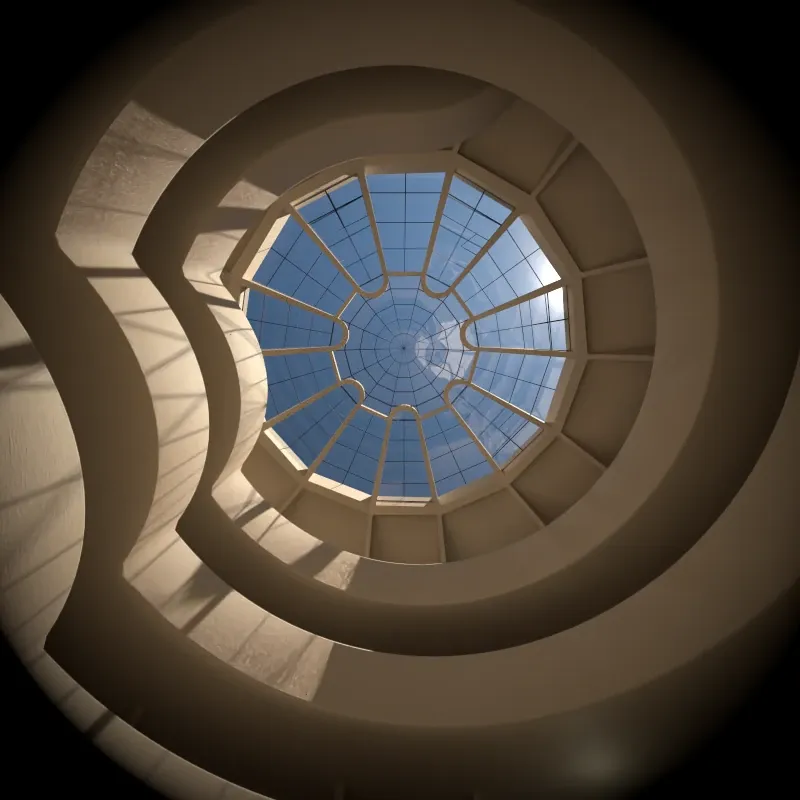
Vignette: Darkens image edges. Higher values increase the effect. Set to 0 to disable.
Tone Mapping Operator
Section titled “Tone Mapping Operator”Operator: Choose the tone mapping algorithm:
- Linear: Direct conversion. May wash out very bright areas.
- Reinhard: Preserves detail in highlights better than linear.
White Point: (Reinhard only) The luminance value that maps to white.
Viewport Background
Section titled “Viewport Background”Backplate: Background shown behind transparent areas in the viewport:
- No Background: Solid black background.
- Checkers: Checkerboard pattern to visualize transparency.