
Report a Bug
Found a bug? Your bug reports help us improve Rayscaper for everyone. This guide will show you how to submit a helpful bug report.
Where to Report
Section titled “Where to Report”You can report bugs in two ways:
- Email: Send your report to
help@rayscaper.com - Forum: Post in the Extensions & Applications Discussions forum on SketchUcation
Choose whichever method you prefer.
How to Report a Bug
Section titled “How to Report a Bug”Follow these steps to help us understand and fix the issue quickly:
1. Export the log files
Section titled “1. Export the log files”Rayscaper can automatically generate a zip file containing all diagnostic information. This is the most important step.
Go to Extensions > Rayscaper > Export Logs for Support in the SketchUp menu:
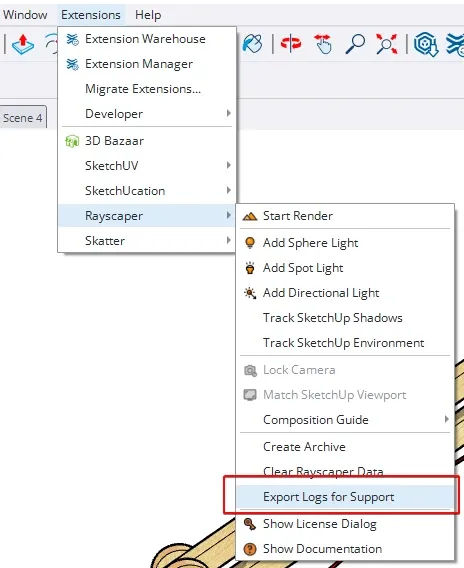
This creates a zip file that you’ll attach to your bug report.
2. Describe the problem
Section titled “2. Describe the problem”In your email or forum post, include:
- What you were trying to do - What were you working on when the bug occurred?
- What happened - What went wrong? Be specific about error messages or unexpected behavior.
- What you expected - What should have happened instead?
3. Help us reproduce the issue
Section titled “3. Help us reproduce the issue”The easier it is for us to reproduce the bug, the faster we can fix it. If possible, include:
- Step-by-step instructions - Exact steps to trigger the bug (e.g., “1. Open material editor, 2. Click glass preset, 3. Change roughness to 0.5”)
- Screenshot or screencast - Visual evidence helps us see exactly what you’re experiencing
- SketchUp test scene - A minimal
.skpfile that demonstrates the problem is extremely helpful
4. Send your report
Section titled “4. Send your report”Attach the log zip file from step 1, along with any screenshots or .skp files, to your email or forum post.
What Happens Next?
Section titled “What Happens Next?”We review all bug reports and will typically respond within a few business days. If we need more information, we’ll reach out to you.