
Rendering FAQ
Do I need a GPU to use Rayscaper?
Section titled “Do I need a GPU to use Rayscaper?”No. Rayscaper works with CPU-only rendering using Intel Embree, a high-performance ray tracing library.
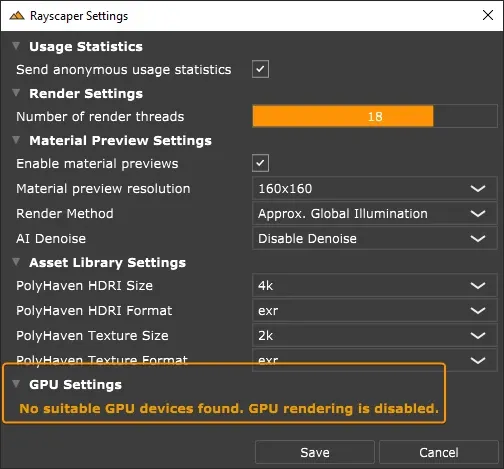
When GPU rendering is unavailable, Rayscaper shows a notification in the settings.
What GPU do I need for GPU rendering?
Section titled “What GPU do I need for GPU rendering?”GPU rendering requires an NVIDIA GPU with compute capability 5.0 or higher. Check your GPU on the NVIDIA compute capability page.
How can I improve responsiveness while rendering?
Section titled “How can I improve responsiveness while rendering?”CPU rendering uses significant system resources, which can make SketchUp and other applications feel sluggish. Try these solutions:
Reduce render threads: In the application settings, lower the number of render threads. This reduces CPU load at the cost of slower render times.
Disable material previews: Material preview rendering also consumes CPU resources. Disable previews in the application settings.
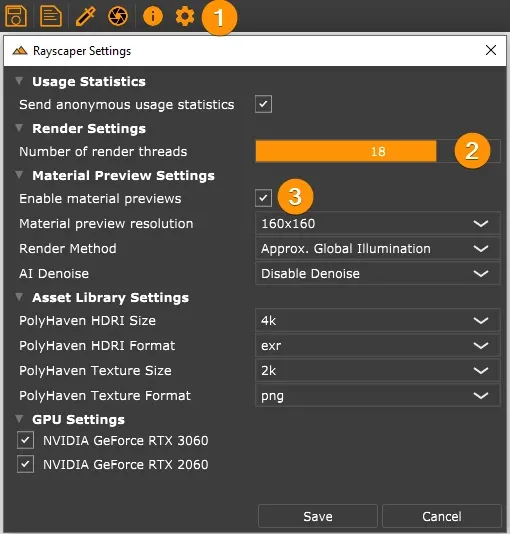
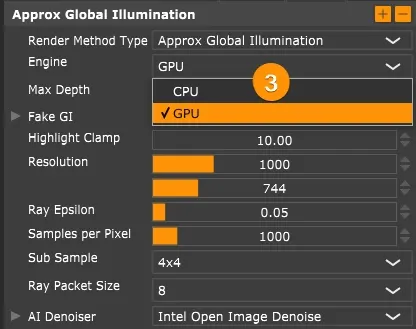
Use GPU rendering: If you have a compatible NVIDIA GPU, switch to GPU rendering in the render settings. This frees up your CPU entirely. A dedicated GPU works best.
Why do some faces appear cyan?
Section titled “Why do some faces appear cyan?”
Cyan indicates faces without an assigned material. Rayscaper uses cyan as the default color for unassigned faces. To fix this, assign a material to the face in SketchUp.
This video explains the issue in detail: