
Licensing FAQ
Is there a free version?
Section titled “Is there a free version?”Yes. You can use Rayscaper without a license, but with these limitations:
- Renders include a watermark.
- Renders cannot be used commercially.
Everything else works the same as the licensed version.
How can I get a Rayscaper license?
Section titled “How can I get a Rayscaper license?”To use Rayscaper without limitations, you need to purchase and activate a license.
Step 1: Open the license dialog
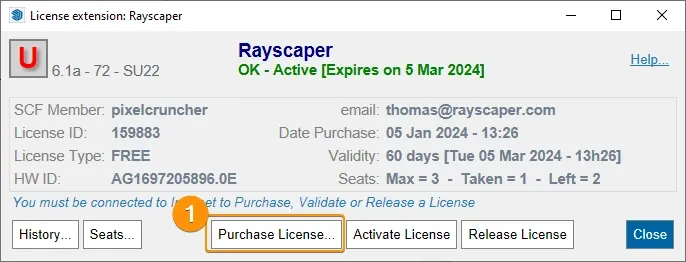
Section titled “Step 1: Open the license dialog”Click the license button on the Rayscaper toolbar to open the SketchUcation license dialog.

In the dialog, click Purchase License… to open the SketchUcation store.
Step 2: Complete your purchase
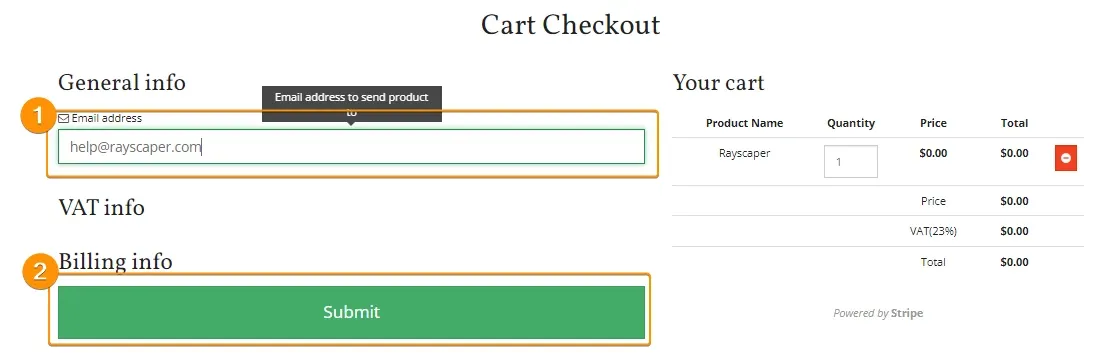
Section titled “Step 2: Complete your purchase”On the SketchUcation page, select the number of licenses you need and complete your purchase.

Enter your email address and confirm your order.
Step 3: Download your license file
Section titled “Step 3: Download your license file”After purchase, you will receive an email with your license. You can also download it directly from your SketchUcation licenses page.

Step 4: Activate Rayscaper
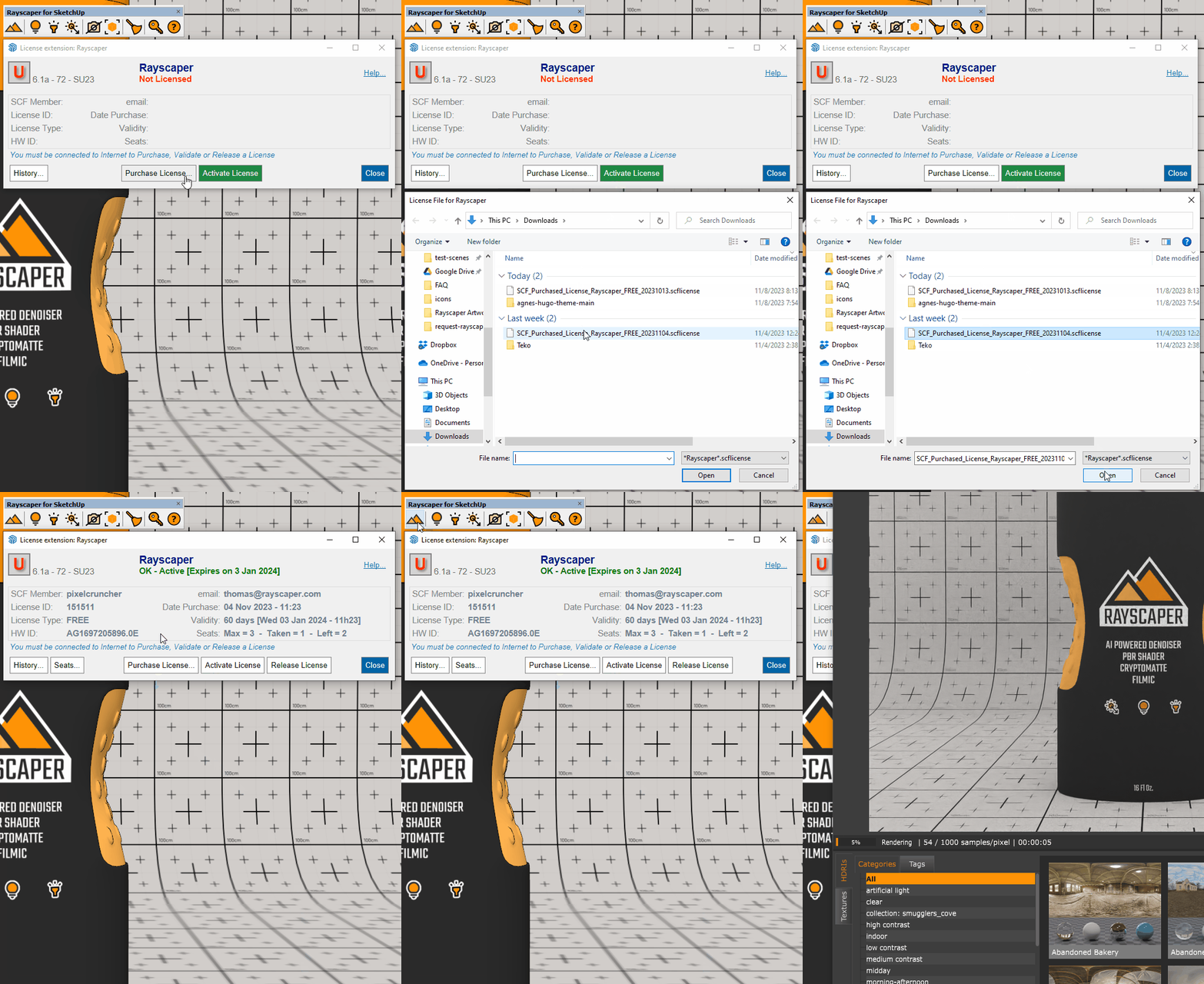
Section titled “Step 4: Activate Rayscaper”The license file has the extension .scflicense. Open the license dialog again, select your license file, and Rayscaper will activate automatically.
How do I release a license seat?
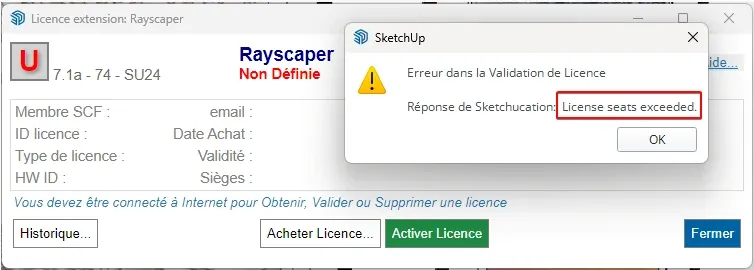
Section titled “How do I release a license seat?”If you see the error “License seats exceeded”, all your license seats are already in use on other computers. You need to release a seat before you can activate Rayscaper on a new machine.
Step 1: Go to SketchUcation
Section titled “Step 1: Go to SketchUcation”Open www.sketchucation.com and log in with the account that owns your license.
Step 2: Open your licenses page
Section titled “Step 2: Open your licenses page”In the top menu, click PluginStore, then select My Licenses.

Step 3: Release the seat
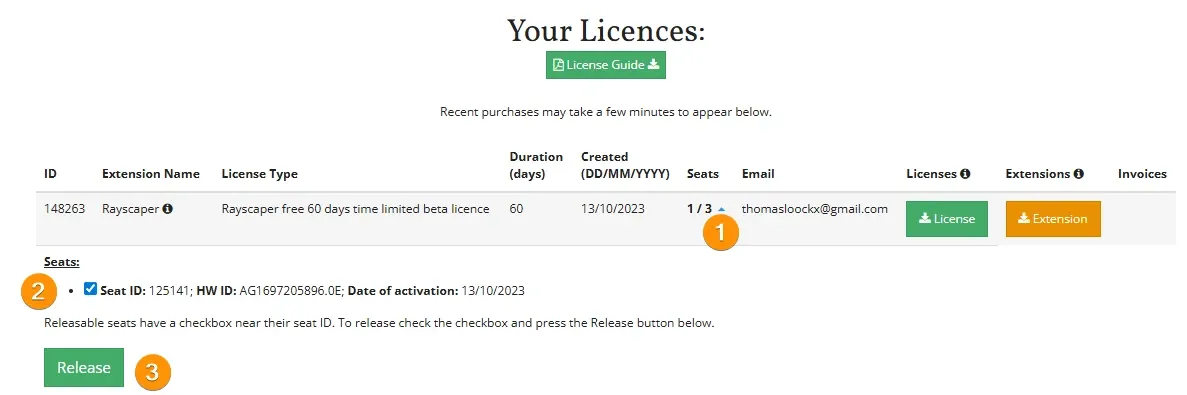
Section titled “Step 3: Release the seat”On the “Your Licences” page:
- Find your Rayscaper license and click the arrow next to Seats to expand the details
- Check the box next to the seat you want to release
- Click Release
Step 4: Activate on your new computer
Section titled “Step 4: Activate on your new computer”Your seat is now available. You can activate Rayscaper on your new computer using your license file.